Thursday, 8 September 2011


DNS Zone Delegation

 
Zone Delegation in DNS

DNS provides the option of dividing up the namespace into one or more zones, which can then be stored, distributed, and replicated to other DNS servers. To delegate a zone is to create a new zone for a subdomain within a DNS namespace and give up authority of that new zone. For example, a company owning the domain google.com can delegate subdomains such as mail.google.com and uk.google.com to its various regional offices.

When to Delegate Zones

DNS delegations are automatically used to separate parent and child AD DS domains in a single forest. For example, if your organization originally includes a single AD DS domain google.com and then creates a child AD DS domain named mail.google.com the DNS namespace of the new child AD DS domain will automatically be configured as a new DNS zone and delegated subdomain of the parent zone. The authoritative DNS data for all computers in the child domain will be stored on DNS servers in that new AD DS domain.
When delegating zones within your namespace, be aware that for each new zone you create, you will need delegation records in other zones that point to the authoritative DNS servers for the new zone. This is necessary both to transfer authority and to provide correct referral to other DNS servers and clients of the new servers being made authoritative for the new zone.

How Delegations Work

For a delegation to be implemented, the parent zone must contain an NS record and an associated A record ( glue record) pointing to each authoritative server of the delegated domain. 

I have created a Namespace with google.com as parent and child with the name mail.google.com.

In the figure, a local DNS server named DNS1.google.com is authoritative for the domain google.com and has a configured delegation for the subdomain mail.google.com. If a client queries this local DNS server for the FQDN say "web.mail.google.com", the server consults the locally stored NS and A records that are configured for the delegation to determine that the authoritative name server for the mail.google.com domain is DNS1.mail.google.com, and that this server's IP address is 172.x.x.x. The local DNS server then queries DNS1.mail.google.com for the name web.mail.google.com. After the remote DNS server receives the query, it consults its locally stored database and responds to the querying DNS server with the IP address of the host web.mail.google.com, which is 172.y.y.y. The local DNS server then responds to the original querying client with the information requested.


NOTE:- If you will open the DNS console then there will be only one RR i.e. NS record that will point to authoritative server for that zone.
Now the question is why I mentioned that there will two RR i.e. NS and A RR. The second RR for A is also there but it is hidden and you can check in the parent zone file that you have created on the server. Below screenshot will give you clearer picture on this.


These resource records include the following:
A name server (NS) resource record:-. This resource record dns2.mail.google.com. is an authoritative server for the delegated subdomain.
A host (A or AAAA) resource record:- It is also known as a glue record is necessary to resolve the name of the server that is specified in the NS resource record to its IP address.
Creating a Zone Delegation
To create a zone delegation, the domain to be delegated must already be created on a server that is authoritative for the DNS subdomain. Then, you can configure the New Delegation Wizard on the server hosting the parent zone by right-clicking the parent zone folder in the DNS console and selecting New Delegation.
To complete the Delegation Wizard, you will need to specify the name of the delegated subdomain and the name of name server that will be authoritative for the new zone. After you run the wizard, a new folder will appear in the DNS console tree representing the newly delegated subdomain.

Friday, 5 August 2011

Restore AD Object from the AD snapshot in Server 2008

      Restore AD Object from the AD snapshot in Server 2008

Frnz,

Today i will share "how to recover the deleted objects from AD snapshot in Server 2008
and Server 2008 R2.

This is also very nice feature.In the previous version of windows if you have accidently
deleted an object from AD then you need to perform couple of task to recover that,
and that also require you to reboot the DC.

But with the newer version of windows 2008 and 2008 R2 there are couple of features
included in these, and AD snapshot and Recycle Bin are the one of the feature.

In this blog I will share how to recover deleted object with AD snapshot.

So you have a AD environment and you have users in that.Assume you have scenerio
like below.Here you have two users vijay and t1.


Now you need create a AD snapshot. To do that follow the following steps.

Step1: Go to command prompt and type

          C:\ntdsutil

Step2: Now type snapshot

          ntdsutil: snapshot

Step3: Now you need activate AD instance,to do this type
       
          snapshot: activate instance ntds

Step4: Now instance is activated ,you need to create the snapshot

           snapshot: create
       
   Creating snapshot...
          Snapshot set {59738915-f3f2-4919-8769-f7379911c4f6} generated successfully.

Step5:  Now the instance is created but you need to mount it.to do this


            snapshot: mount {59738915-f3f2-4919-8769-f7379911c4f6}
            Snapshot {33d4ede5-c094-41b9-8e42-421df7b1d667} mounted as
            C:\$SNAP_201108040529 _VOLUMEC$\
            snapshot:


            It will mount the created snapshot to C:\$SNAP_201108040529 _VOLUMEC$\

Step6:  Now you need to connect the newly created instance with some different
           port number. To do this  type


 dsamain -dbpath C:\$SNAP_201108040529_VOLUMEC$\windows\NTDS\NTDS.Dit -ldapport 15389


          here blue portion is where the instance mounted and purple portion represent
          the port on which this instance will connect.

Step7: Now you have two AD instance

           1. One on port 389 (not having users t1 and vijay)
           2.  Second is on port 15389 (having both the users t1 and vijay)

          Open the first one using dsa.msc with the default port 389 
          Open the second one using dsa.msc and then connect to domain controller and
          mentioned the FQDN with the posrt 15389.
          Now you will have two mmc opened as shown below.


Step8:- Now you can recover the object either using ldp.exe tool or some other tool
            I have got a very small and easy command tool to recover the objects i.e oirecmgr.exe

           You can download this tool from here

Step9:- After downloading this tool just extract in some folder say c:\ drive

Step10:-Run the following command to recover the object but to run this command you
             need to get the GUID  of the deleted user.

           
C:\oirecmgr.exe -o fe6a3c0f-5e15-4022-b076-eacac4e1a23e -sh test.local:15389 -ol -real
 
   >>Here red portion is GUID of the object and blue portion is the snapshot
       connected to port 15389


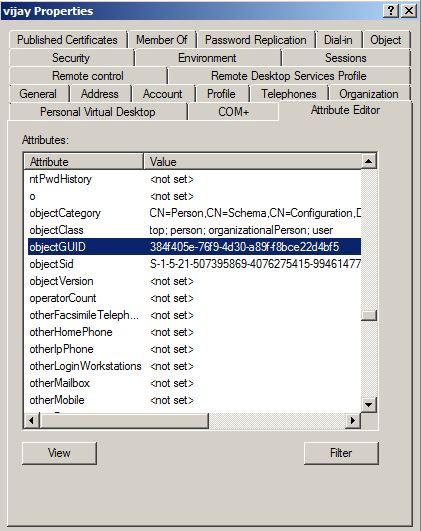
To get the GUID of the user you can use ADSI Edit .Open Adsi Edit and then

Right click on Adsi Edit and connect to , A box will open then go to Advanced
Now add the port 15389 and then click on OK


Now go to the OU and open the properties of deleted user say vijay.


After running the above command the deleted object will be recovered.


Wednesday, 3 August 2011

Restore AD objects using Recycle Bin Feature of Server 2008 R2


How to restore the Object using Recycle Bin Feature of Windows Server 2008 R2

To Import the Active directory commands in the powershell we need to run the 
following command in powershell

PS> Import-Module activedirectory

Once all the Active directory cmdlets are imported after that you need to get the
functional level of the forest up to the level of Windows Server 2008 R2.  
As the Active directory Recycle Bin features only come under this functional level.
You can do this from Active Directory Domains and Trusts that is very easy way 
to do this. As you can see below that the current functional level is Windows Server
2003 and we need to raise it to Windows Server 2008 R2.

We can also raise the functional level from the powershell. The Get-ADForest 
cmdlet will return information about your forest and the Set-ADForestMode  
cmdlet will enable you to raise the current functional level.You will be prompted
to confirm that you wish to go ahead.

PS> Get-ADForest | Set-ADForestMode –ForestMode Windows2008R2Forest


Now our functional level is set to Server 2008 and now we can enable the Recycle Bin.
Now that our forest is at the correct functional level we can enable the Recycle Bin,
To enable this feature you can run the following command. It will also ask you about 
the confirmation. 

PS> Enable-ADOptionalFeature 'Recycle Bin Feature' -Scope ForestOrConfigurationSet 
-target 'test.local'


Now that we have the Recycle Bin enabled and now we can check by deleting some
object from our AD structure.


There is a new feature included in Windows 2008 Server that is ‘Protect object from
accidental deletion’. So it may happen that you going to delete  OU but got a  
Access is denied response and the administrator will actually have to remove the
tick from that checkbox before the OU can be deleted.Below is the error that you 
will get if the ‘Protect object from accidental deletion’ is checked.


To do this you need to select the Advance Features, you can get this by following way.


Then you can go to the properties the OU and go to the Object tab and uncheck the
”Protect object from accidental deletion”


So now we have removed the checkbox and now we can remove the OU from the AD.
We have removed the Team OU and now you can see below that there is no 
Team OU in the structure.


To see all the deleted objects, we can run the below Powershell command
PS> Get-ADObject –SearchBase “CN=Deleted Objects,DC=test,DC=local” 
–ldapFilter “(objectClass=*)” -includeDeletedObjects | Format-List Name,ObjectClass,ObjectGuid


We can see from the resultant output that we have both the Users OU in there 
and the two user accounts. So now we will restore the objects
                                                                                                                     
Note:- To restore the Users ,you first need to restore the Parent OU otherwise is will give you error.

PS> Restore-ADObject -identity 280befcd-6937-4030-a33c-1ba0a9d40c24 

The above command will restore the OU Team but that will be empty as we need to 
restore the User objects as well.


Now we need to restore the objects in Team OU. We can do this by the above 
method we used to restore the OU.But the problem is that if we will have 1000 users
in that OU that will be so tough to use this command to restore every single object
related to that OU Team.So to fix this we will make a search for all the deleted users 
that are related to that OU Team and then will restore them.
To do that we can run the following command.

PS> Get-ADObject -ldapFilter "(lastKnownParent=OU=Team,DC=test,DC=local)" 
-includeDeletedObjects | Restore-ADObject

After this command will finish you will see that all the users that will be related to this 
Team OU will be restored.Check the below screen shot.


The user accounts are back in the Users OU.

This is very Nice and easy feature of Windows Server 2008 R2 to restore the deleted Objects.

Monday, 1 August 2011

Extend virtual machine partition and create single vmdk file from multiple files

Hello Frnz,

As most of you are using VmWare for your day-today testing.
Sometimes you may have face the following issues and may be get angry.

1.  You have vmdk files spitted into 2GB files
     (suppose your HDD is of 40GB then you will 20 Vmdk files)
2.  You have created 10GB Vmdk file and afterward you require more HDD space.

Today in this blog I will just share with you few techniques to fix the above issues. 

                          How To create one vmdk file from multiple files

Please follow the following steps to create one Vmdk file from multiple files.

Step1.  Copy the vmware-vdiskmanager from vmware server/workstation edition to          
             %systemroot%\system32.you can get this by
             
           Going into C:\Program Files\VMware\VMware Server>
             or
            Going into C:\Program Files\VMware\VMware Workstation>  
            or
          You can also search for vmware-vdiskmanager from the Vmware installation folder

Step2:  After copying the exe file just run the following command.

C:\>vmware-vdiskmanager -r G:\VmS\2003_server\Windows_Server_2003-000001.vmdk –t 2 H:\mysinglefile.vmdk


{G:\ is the source drive folder where you have all the splitted 2Gb vmdk files.
H:\mysinglefile.vmdk is the location where it will create a single vmdk file.}


Step 3: After that run the Vm machine, if it gave some error message then try to 
            browse that single Vm disk.If still the error comes then  just create a new
            VM machine and after creating the new machine just replace the HDD of
            the newly created machine with the HDD (single vmdk file that you have  
            created).It will work.


                                   How To increase space of single vmdk file

There are two ways to do this 


1. Command based
2  GUI based

Command Based:

Step1:- Turn off the virtual machine;
Steps2:-Commit/remove all the snapshots if any. 
Step3:-Open a Command Prompt and go to:  

C:\Program Files\VMWare\VMWare Server or C:\Program Files\VMware\VMware Workstation

or if you have already copied this file to system32 folder then simply run the below command. 

Step4:-Run this command to expand the virtual disk:

vmware- vdiskmanager -x 12GB "My harddisk.vmdk"

Step5:-This only expands the disk and not the partition, you'll need to resize the partition
           table as well. This can be done by 3rd party tools like 'Partition Magic, but also
           with Diskpart.exe, a tool of Windows.
  
Step6:- Type the following commands to extend the partition.
             Power on the Virtual machine
       
1.      Open a Command Prompt and type:
diskpart
2.      Type:
list volume
Remember the volume number of your volume
3.      Type:
select volume <volume number>
4.      Type:
extend 

GUI Based

To extend the disk using GUI interface

Step1:- Power off the machine
Step2:-Goto the "Edit virtual machine setting" option on the main page.
Step3:- Click on the Hard Disk
Step4:- On the right hand side click on Utilities as shown below

Step5:- Click on expand and mention how much total space you require.Click OK
             It will start extending the disk

Step6:- Use the diskpart.exe utility to extend the partition.

Thursday, 28 July 2011

Windows Groups and Scopes

Hi Frnz

Today I will share with you some knowledge of Windows Groups and Scopes.I have seen many people usually don't have enough idea about Groups and Scopes.

So let’s have details on this.

Group:-A group is a container that contains user and computer objects within the group. The user and computer objects are stored in the group known as group members.. Assigning the security permission for a group on a resource ensures that all members of the group receive the permission.

Types of Groups:

  1. Distribution group
  2. Security group
Distribution groups can be used only with e-mail applications (such as Exchange) to send e-mail to a collection of users. Distribution groups are not security-enabled, which means that they cannot be listed in Access control list.
Security groups are used to provide access to resources on a network. Security groups are also used to assign user rights in Active Directory and to assign permissions on shared resources on the network. Security groups are listed in ACLs 
Group Scopes:-

Security Group or Distribution Group are differentiate by a scope that identifies the extent to which the group is applied in the domain tree or forest.

There are three group scopes: 

         1. Domain Local
         2. Global Group
         3. Universal Group

1. Domain Local:-Members of  Domain Local Groups can include other groups and accounts from any domain and can be assigned permissions only within a domain.

·     Users can be from any domain.
·     Can have permissions only in the domain in which it is created.

2. Global Group:-Members of Global Groups can include other groups and accounts only from the domain in which the group is defined and can be assigned permissions in any domain in the forest.

·     Users can be from the domain in which we create global group
·     Can have permission on any domain 

 3. Universal Group:-Members of Universal Group can include other groups and accounts from any domain in the domain tree or forest and can be assigned permissions in any domain in the domain tree or forest.

·     Users can be from any domain
·     Can have permission in any domain

Usage of group with Domain Local Scope

Groups with domain local scope help you define and manage access to resources within a single domain.

Let’s take an example:-

You need to give ten users access to a particular folder A, you could add all ten user accounts in the folder permissions list. If, however, you later want to give the five users access to other folder B, you would again have to specify all five accounts in the permissions list for the new printer.


If you have good idea about the groups, you can simplify this administrative task by creating a group with domain local scope and assigning it permission to access the folder A. Put the ten user accounts in a group with global scope and add this group to the group having domain local scope. When you want to give the ten users access to a folder B, assign the group with domain local scope permission to access the folder B. All members of the group with global scope automatically will access to the folder B


Now you all may have question in your mind
that why we used Global Group in the above scenario.
The Answer for that is “
it is a best practice and recommended to use the A-G-Dl-P model when assigning permissions. 
                  A->G->Dl->P    A=Users G=Global Groups Dl=domain local P= permissions. 

What this model means is that you put "user Accounts" in to "Global groups" and then put the global groups into "Domain local" groups and then assign permissions to that Domain local group it is recommended you assign permission on Domain local group, this will be helpful in future. However you can assign permission directly to any Group but the recommended model is A-G-Dl-P

Usage of group with Global Scope

Groups with global scope usually used to manage user and computer accounts that require daily maintenance. Because groups with global scope are not replicated outside of their own domain .Accounts in a group having global scope can be changed frequently without generating replication traffic to the global catalog.The changes that are made on this will remain within the domain where it exists. By doing this you will restrict more traffic to the global catalog server.

Let’s take an example:-


In a network with two domains, A.com (India) and B.com (USA), if there is a group with global scope called GLFinance in the A.com (India) domain, there will also be a group called GLFinance in B.com (USA).

It is strongly recommended that you use global groups or universal groups instead of domain local groups when specifying permissions on domain directory objects replicated to the global catalog.

Usage of group with Universal Scope

Groups with Universal scope usually used to consolidate groups that are on different domains. To do this, add the accounts to groups with global scope and nest these groups within groups having universal scope. Using this strategy, any membership changes in the groups having global scope do not affect the groups with universal scope.

Let’s take an example:-


In a network with two domains, A.com (India) and B.com (USA), and a group having global scope called GLFinance in each domain, create a group with universal scope called UFinance to have as its members the two GLFinance groups, A.com (India) and B.com (USA). The UFinance group can then be used anywhere in the enterprise. Any changes in the membership of the individual GLFinance groups will not cause replication of the UFinance group.

Tuesday, 26 July 2011

How to change SID in Windows Server 2008 R2


How to change SID on Windows Server 2008 R2
 
Most of the tech guys usually work on VMware and some other Virtual platforms and usually install the same OS to create multiple copies. You can do this copy by two methods.
1.      By cloning the virtual machine
2.      By Changing the SID of the OS so that it will not conflict.

In previous version of Windows like 2003 we usually use NewSID.exe that is recommended by Microsoft to changing the SID. But if you will use this NewSID.exe with windows server 2008 it will work but if you will use this for Windows Server 2008 R2 then your OS will be crashed and will be rebooted in recovery mode every time you restart.

In this blog i will describe you how to change SID on Windows Server 2008 R2.
The method is to use sysprep. 

First, click on  Start->Run, type sysprep and press OK.


This will open sysprep folder which is located in c:\Windows\System32. Open sysprep application.


This will open System Preparation Tool 3.14 window. As a System Cleanup Action select Enter System Out-of-Box Experience (OOBE).

Important: select Generalize if you want to change SID, it’s not selected by default.

As Shutdown Options select Reboot.


It will take some time for sysprep to finish.


After rebooting you will have to enter some data, like Country or region, Time and currency and Keyboard input.


Also, you will have to accept EULA. After booting, in Server Manager you’ll see that everything is changed, if you had some settings that you had configured earlier that will be changed as you have some new OS.


You can check the SID if you want to check
Also you can use the PsGetSid that is very small utility to check the SID

Monday, 25 July 2011

DNS Query

DNS server recognize two types of name resolution
  1.  Recursive query
  2. Iterative  query

we can define both queries in such a simple way like in iterative query a DNS server says "tell you what i know" and in recursive query DNS server says "i will research the answer and then let you know"